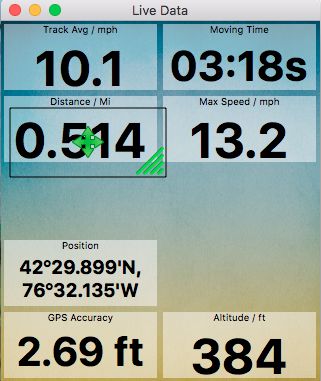
The app is capable of displaying a great variety of information, and many people will want to customize the displays to enhance the data that is relevant to their style of using the app. Some people just want to record their trip, and see the distance travelled, while others want to know, for example, velocity-made-good as they are navigating towards a mark.
If you want to change any of the data fields, right-click anywhere on the data panel, and select Arrange from the menu. You can then drag or resize data items with the mouse. Items that you cover up when you re-position or re-size an item are automatically moved out of the way, if they will fit.
Right click and Change Data, to select from any of the 30+ available displays. Select Clear to make that cell empty.
When you have customized your layout, I recommend saving it to a file, using the Live Data, Save Layout menu command. You could set up one layout optimized for 4x4 driving, and another set up for sailing, or whatever. These files have the *.dvtf extension, and they can be shared/emailed to other users. These files are also used to configure the data layout in the Memory-Map iPhone / iPad and Android apps, so you can use the Mac as a more convenient way to edit layouts.
Each file contains 4 layouts, which you can see by re-sizing the Live Data window. These correspond to phone and tablet layouts, in landscape and portrait orientation.
If you connect the Mac to a NMEA data stream, there is a whole range of marine instrumentation data (wind speed, water depth, etc, etc) that can be displayed.